Transformations in Grasshopper
Transformation components are the main tools for moving and changing geometry. While you might already know basic operations like Move, Rotate, and Scale from Rhino, Grasshopper uses re-mapping to help geometry adapt to complex shapes.
1. Basic Transformations
Move, Rotate, and Scale are used for simple changes in the workspace. These components usually need a piece of geometry and a specific instruction, like a direction vector or a rotation angle. While the standard Scale component changes size evenly, Scale NU (Non-Uniform) lets you stretch or squash geometry by using different numbers for the X, Y, and Z directions. Parametric design often moves beyond these simple steps to make geometry "fit" onto other objects.
2. Orient Direction
As discussed in the earlier vector tutorials, Orient Direction is a version of orienting that uses vectors instead of full planes. It re-aligns geometry by matching a starting direction to a new target direction. This is very helpful when you want many objects, like panels on a wall, to all face the same point or follow the direction of a surface without setting up complex planes for every single one.
3. Orient
The Orient component, also mentioned in previous tutorials, is the most common tool for moving and re-aligning objects. It takes geometry from a "Source" plane and places it on a "Target" plane. This is better than a simple Move command because it handles both the position and the rotation at the same time. If you use a frame from a curve or surface as your target, your object will automatically align itself to that geometry.
Use the Rhino and Grasshopper files "Transformation-morph" to follow along. Detailed steps and descriptions are in Grasshopper
4. Surface Morph
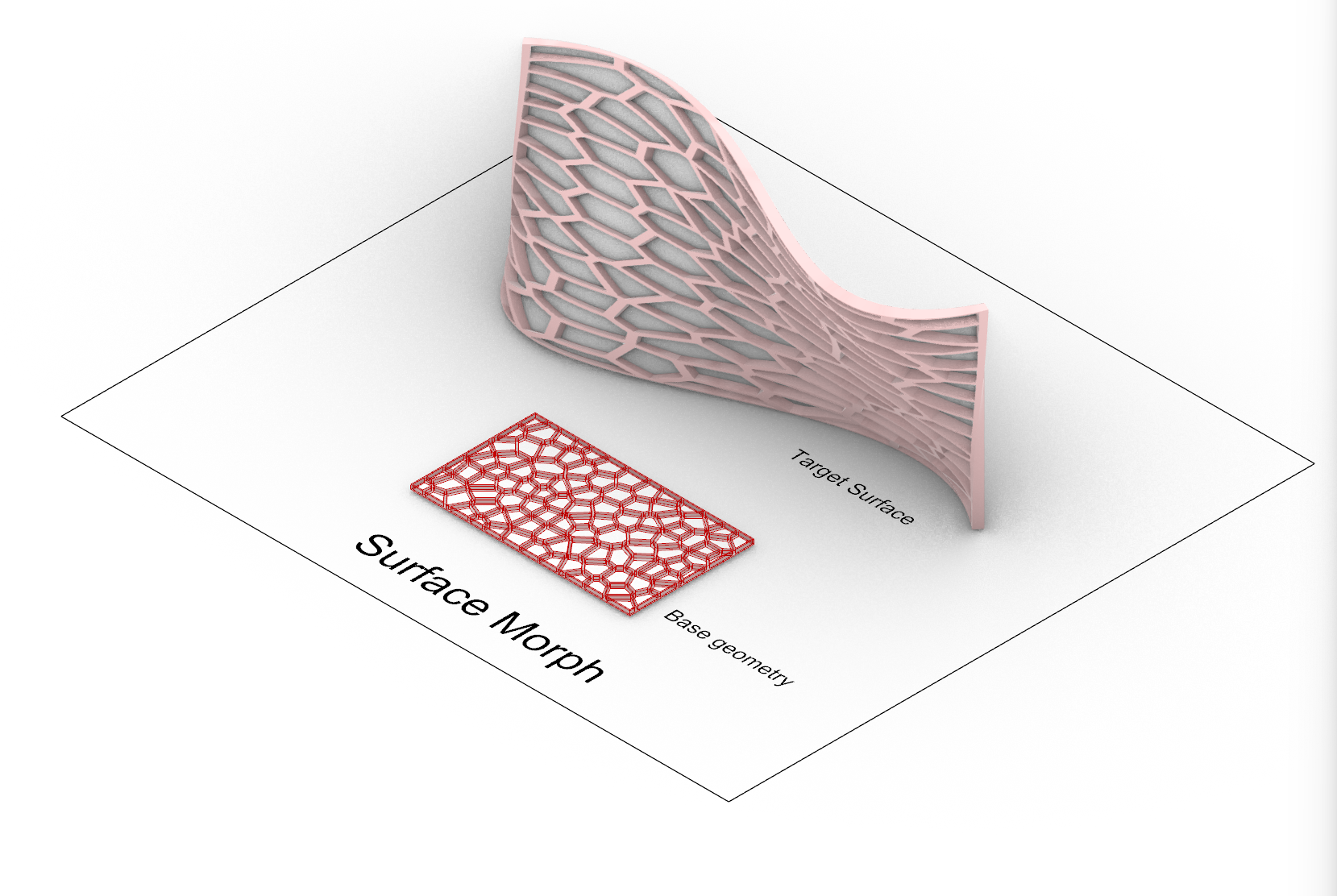
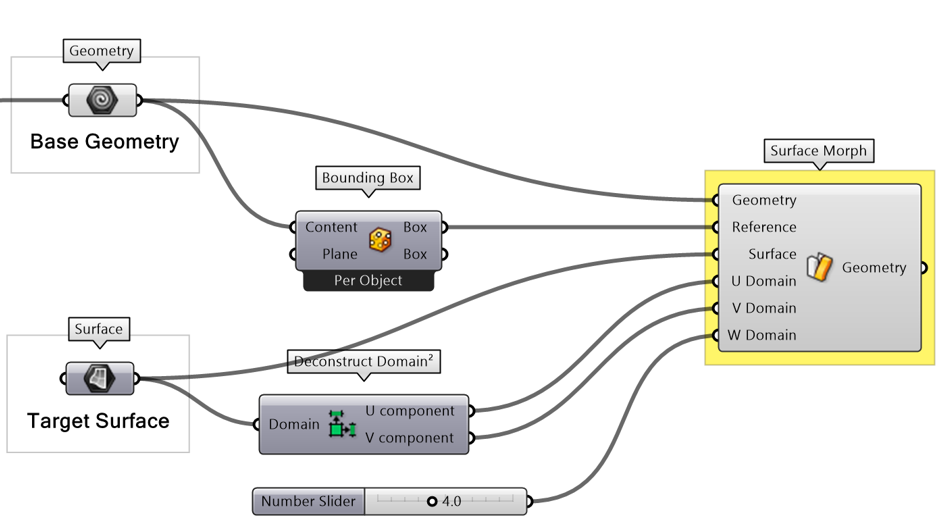
Surface Morph is used to "flow" or stretch geometry onto a curved surface. It takes an object inside a box and maps it onto a specific area of a surface. Unlike Orient, which keeps the original shape of your object, Surface Morph bends and deforms the geometry to follow the curves of the surface. This is the standard way to apply patterns to architectural skins.
5. Box Morph
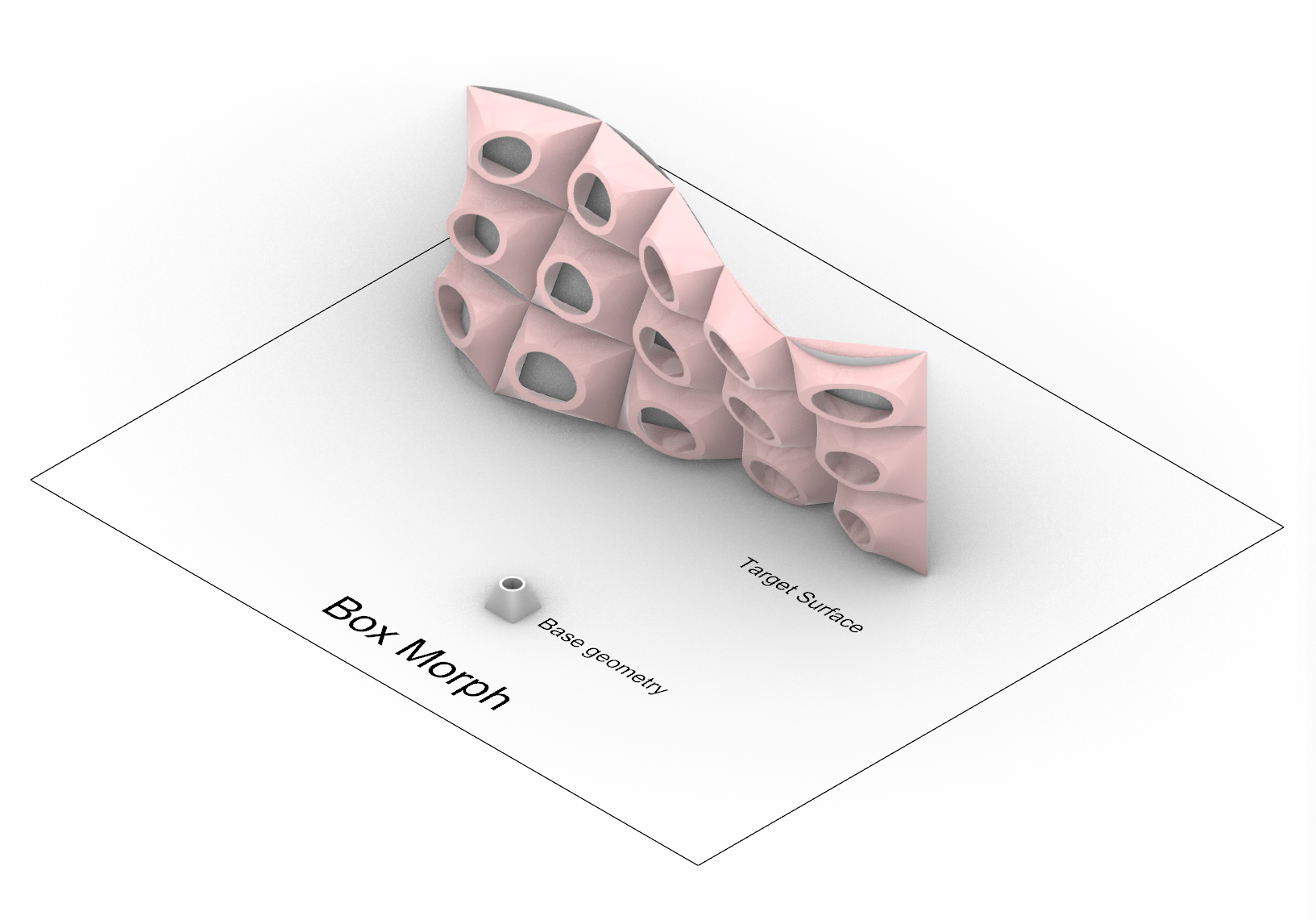
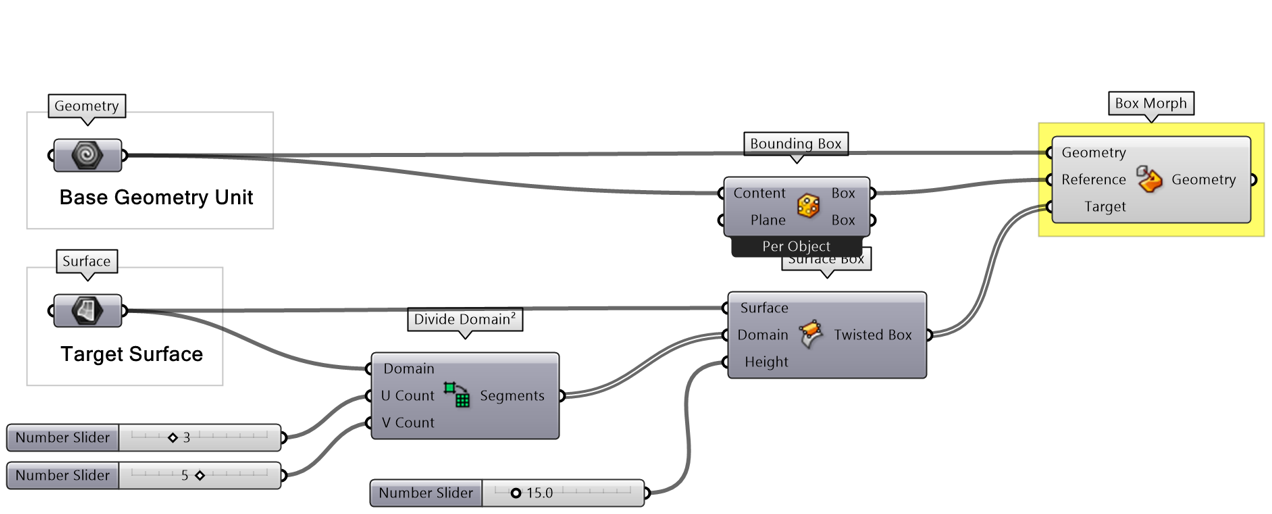
Box Morph is a flexible tool that fits geometry into a specific volume. It takes an object from a "Reference Box" and deforms it to fit inside a "Target Box." Designers often use this with the Surface Box component to create a grid of boxes on a surface. This allows you to fill a surface with 3D parts that automatically change shape to match the thickness and curvature of the host object.
Summary of Logic
- Move: Sliding geometry along a specific path or direction.
- Scale / Scale NU: Changing size evenly or stretching it along certain axes.
- Orient Direction: Aligning an object based on where it needs to point.
- Orient: Moving and rotating an object to match a new location and angle.
- Surface Morph: Bending geometry so it follows the face of a curved surface.
- Box Morph: Changing the shape of an object to fit inside a 3D box