Grasshopper Plugin Installation
You can install most Grasshopper plugins using PackageManager.
We'll use Bifocals as an example. Bifocals is a Grasshopper plugin that lets you display both component names and icons at the same time, making your scripts easier to read and navigate.
In the first two weeks, I suggested displaying the full component name instead of the icon. But as your script grows more complex, having the icon there helps visual thinkers, it's more intuitive. Bifocals gives you both at once.
To install Bifocals:
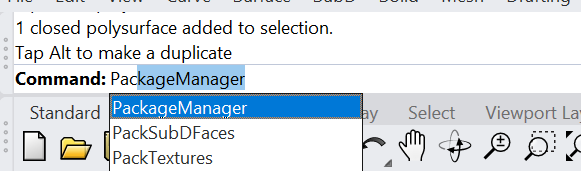
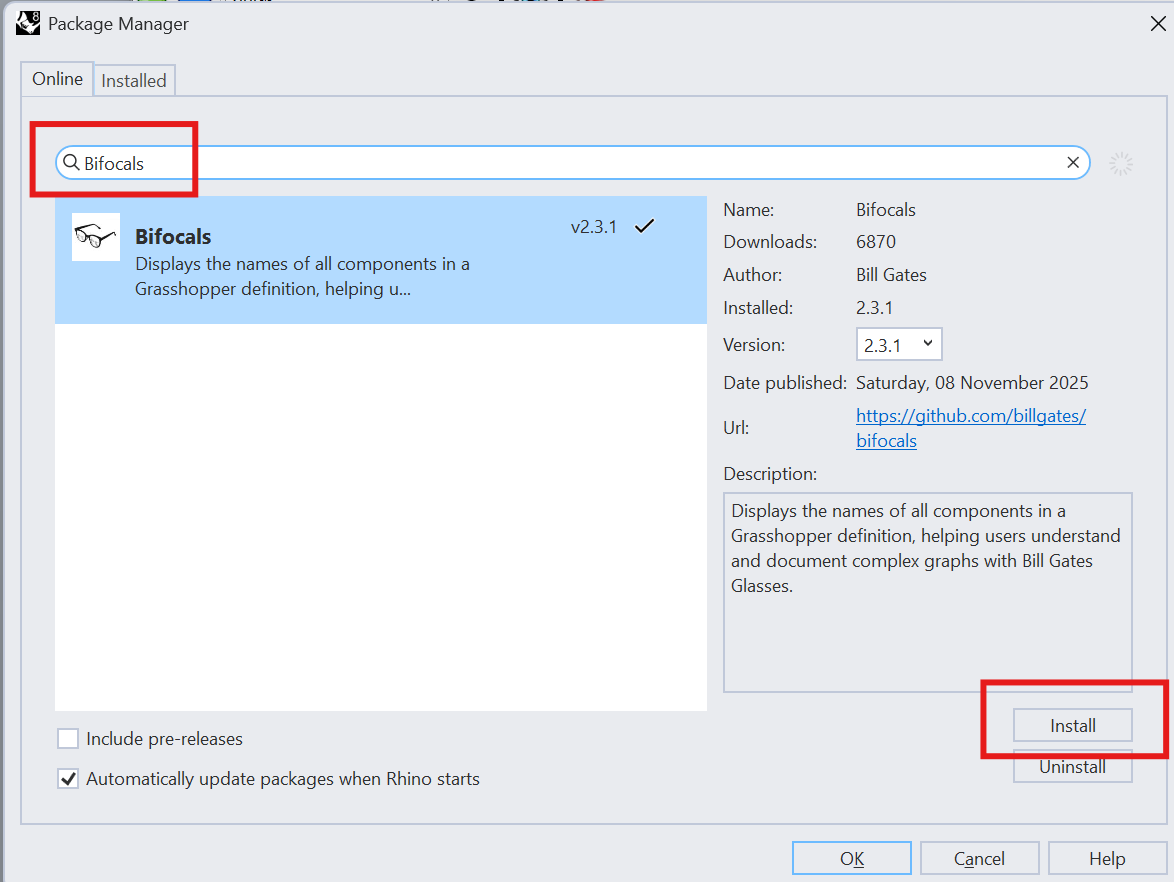
In Rhino command line, type in PackageManager. In the Package Manager window that opens, search for "Bifocals" in the search bar. Click on the Bifocals package, then click the "Install" button. Once the installation is complete, you may need to restart Rhino and Grasshopper for the changes to take effect.
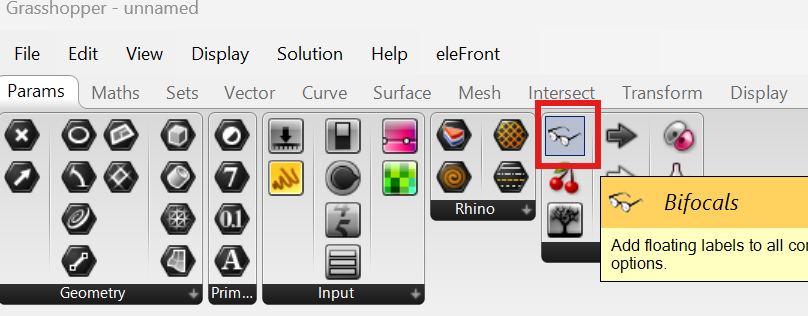
After installation, find Bifocals in the Grasshopper-Param-Util tab, drag it to the canvas, and leave it there. No connection to anything is needed.
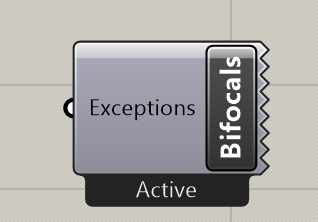
All components will now have a bubble on top showing the component name.
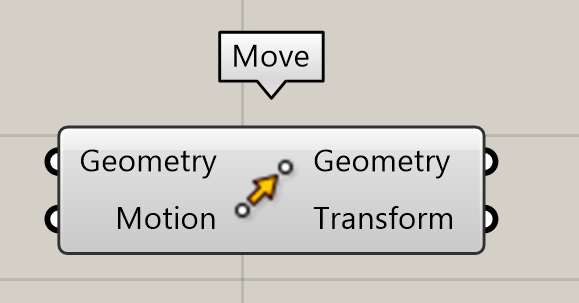
You can now go to Display and check "Draw Icons." All components will display their both icons and their names. For example, this is how “Move” component will look like:
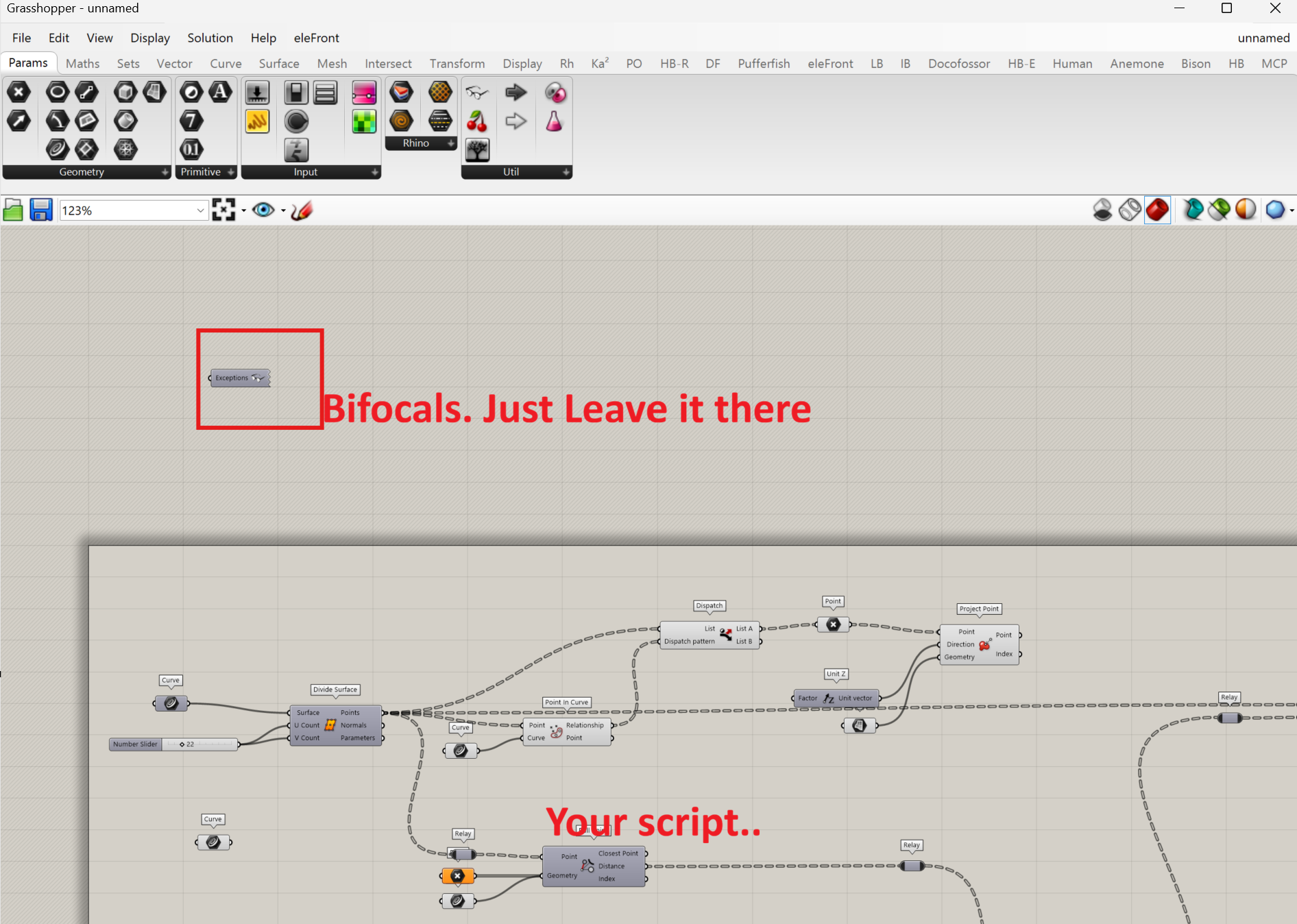
This is how your canvas may be organized. For each new Grasshopper project, you need to add a new Bifocals component to see both text and icons.
For most of other plugins, you will also use the PackageManager to install!